Part of Website Builder — see the Website Builder Overview for the big picture. This guide walks through the core loop: build, preview, publish.
With the Website Builder agent, you can create a website by describing what you want using natural language, refine it through conversation, preview it, and publish it to a domain you own. Here's how each step works.
Build your site
Start by telling the agent what you want to create. The more detail you give about your purpose, audience, style, and the pages or sections you need, the closer the first version will be.
Example prompts:
"Build a one-page site for my coffee roastery — warm, earthy colors, with sections for our story, our beans, and a contact form."
"Create a portfolio site for a freelance photographer with a gallery, an about page, and a booking section."
Tips for a strong first prompt:
- Say what the site is for
- Mention the style/mood
- List the pages/sections
- Include must-have content (tagline, services, hours, links)
Refine your site by chatting
Your first draft is just the starting point. Ask for changes in natural language — the agent updates the site and you can see the changes in the Preview panel.
Utilizing Skills & Tools
Beyond describing a site from scratch, Website Builder gives you a set of skills & tools for common tasks via the + button. Open the skills & tools menu in the chat box via the + icon to pick one.

Add a page
Add a new page to your site (for example, an About, Services, or Contact page).
Generate bulk SEO content
Generate a set of SEO-optimized articles for your site in one go, to help it get found in search
Change site style
Switch to a different visual template to instantly restyle your site without rebuilding it.
Create a logo
Generate a logo for your site.
Add a contact form
Embed a contact form so visitors can reach you; submissions land in your Website Builder inbox
Create a seller storefront
Generate a storefront that showcases your Unstoppable Domains listings, so buyers can browse the domains you have for sale
Create a domain sales page
Create a customizable landing page to sell a single domain
Upload an image
Attach an image to use in your site, or as context for the AI (for example, a brand asset or a layout you want to match)
Choose an AI model
Use the model selector (star icon) to choose which model builds and edits your site.
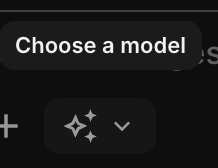
The agent keeps context no matter which you pick, so you can switch anytime.
Available models in Website Builder:
- Opus 4.8
- Sonnet 4.6
- DeepSeek V4 Pro
For help deciding and what each costs, see How to Choose Your AI Model.
Preview your site
Before anything goes live, preview your website so you can see exactly how it will look to visitors. Keep refining in chat until it's right — nothing is published until you choose to.

Publish your site
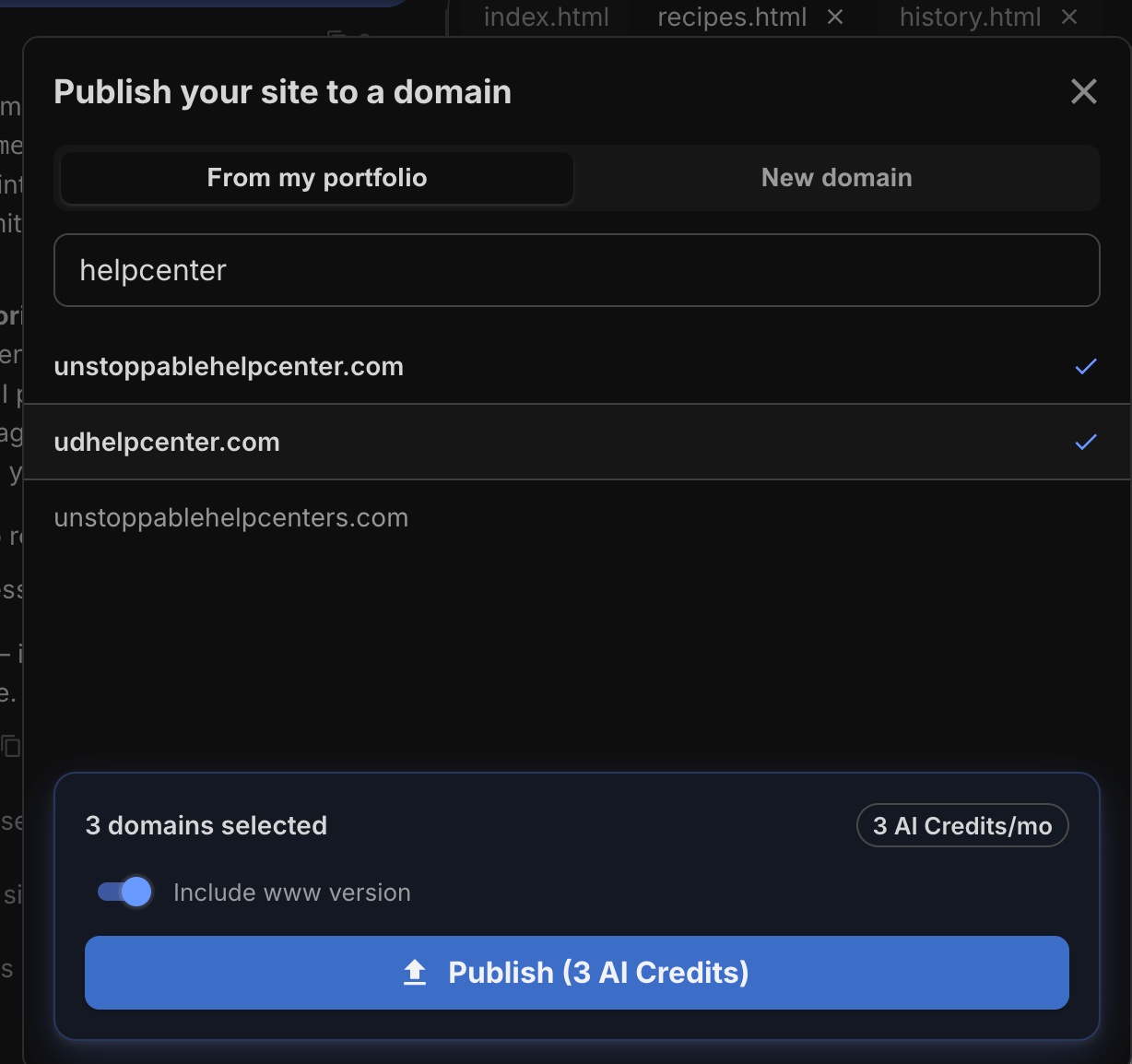
When you're happy, publish to a domain you own. The builder handles DNS, SSL, and hosting automatically.
- Publish to multiple domains at once
- Made changes? Press Publish to re-publish your website.
- Using your own (external) nameservers: if a domain uses external nameservers, hosting can't be enabled until it points to Unstoppable's nameservers. See How to Add or Change Namservers.
- Hosting costs 1 AI credit per month per site
- Ensure you toggle on the Include www version toggle so that subdomain redirects to your website
How it's billed
- Building/refining uses credits (varies by model + complexity).
- Publishing costs 1 credit per domain
- Republishing costs 1 credit per domain
- Hosting costs 1 credit per domain, per month
Full pricing: AI Credits & Subscriptions: Pricing and How They Work.
Running into trouble?
See Website Builder: Troubleshooting, Limits & Quotas.
Questions?
See the Website Builder Overview, or reach support anytime at support@unstoppabledomains.com.