Sub Accounts let you give another person access to your Unstoppable Domains account without sharing your password. You decide what they can do, which domains they can touch, and how long their access lasts. You can end that access at any time.
This is useful when you want a broker to help sell a domain, a teammate to manage your DNS, or a colleague to help run your portfolio — while you stay in control of the account.
You manage everything from the Sub Accounts page. It has two sides: access you have shared with others, and access others have shared with you.
A few terms first
- Owner: You, the person whose account is being accessed.
- Recipient: The person you give access to. While they're using your account, they're acting as a delegate.
- Grant: One bundle of access you give to one person. Every grant has a role, a scope, and (optionally) an expiration.
- Role: What the person is allowed to do (see the roles below).
- Scope: Which domains the access applies to: all of your domains, or a specific set.
- Expiration: An optional time limit. When it passes, the access ends on its own.
Roles at a glance
A role is a set of permissions bundled under one name. When you share access, you pick one role for that person.
You can assign three roles:
| Role | Can do | Can't do |
|---|---|---|
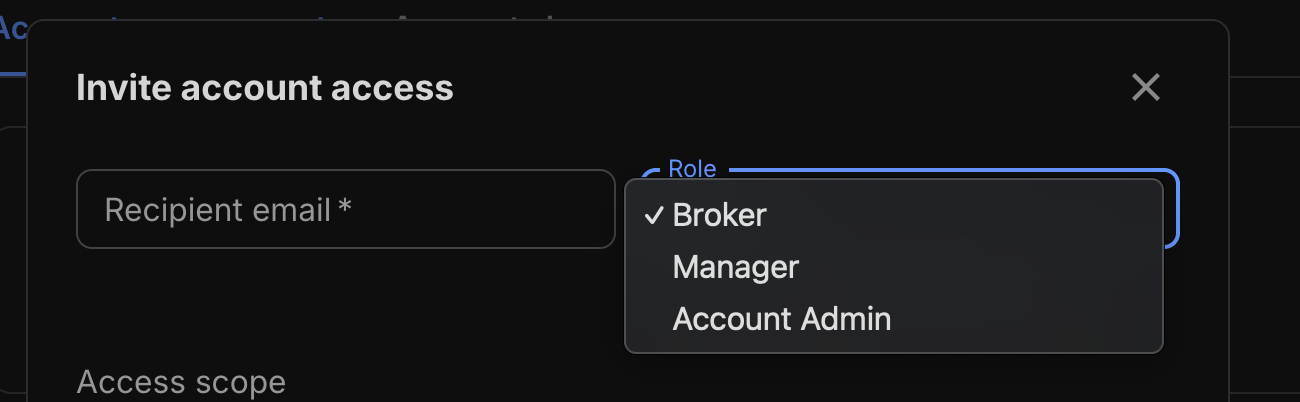
| Broker | Help sell the domains in scope: view domains and DNS, create and manage marketplace listings, and handle buyer inquiries. | Change DNS, billing, or account security. |
| Manager | Manage the domains in scope: edit DNS records and nameservers, manage tags, and view and respond to buyer inquiries. | Change billing or account security. |
| Account Admin | Manage the domains in scope broadly: domains, DNS, nameservers, tags, marketplace listings, and offers | Change billing or account security. |
- None of these three roles can change your billing or account security.
- No one you invite can use Unstoppable AI Chat on your account. AI Chat is not part of any role.
Note: There is also a read-only Customer Support role. You can't assign it — it's used only when Unstoppable Domains support requests access to help with a support case, which you then accept. See when support has access to your account below.
Find the Sub Accounts page
- Sign in at unstoppabledomains.com
- In the account menu, under Account, select Sub Accounts.
- You can also open it directly at unstoppabledomains.com/account/sub-accounts.
The page has two tabs:
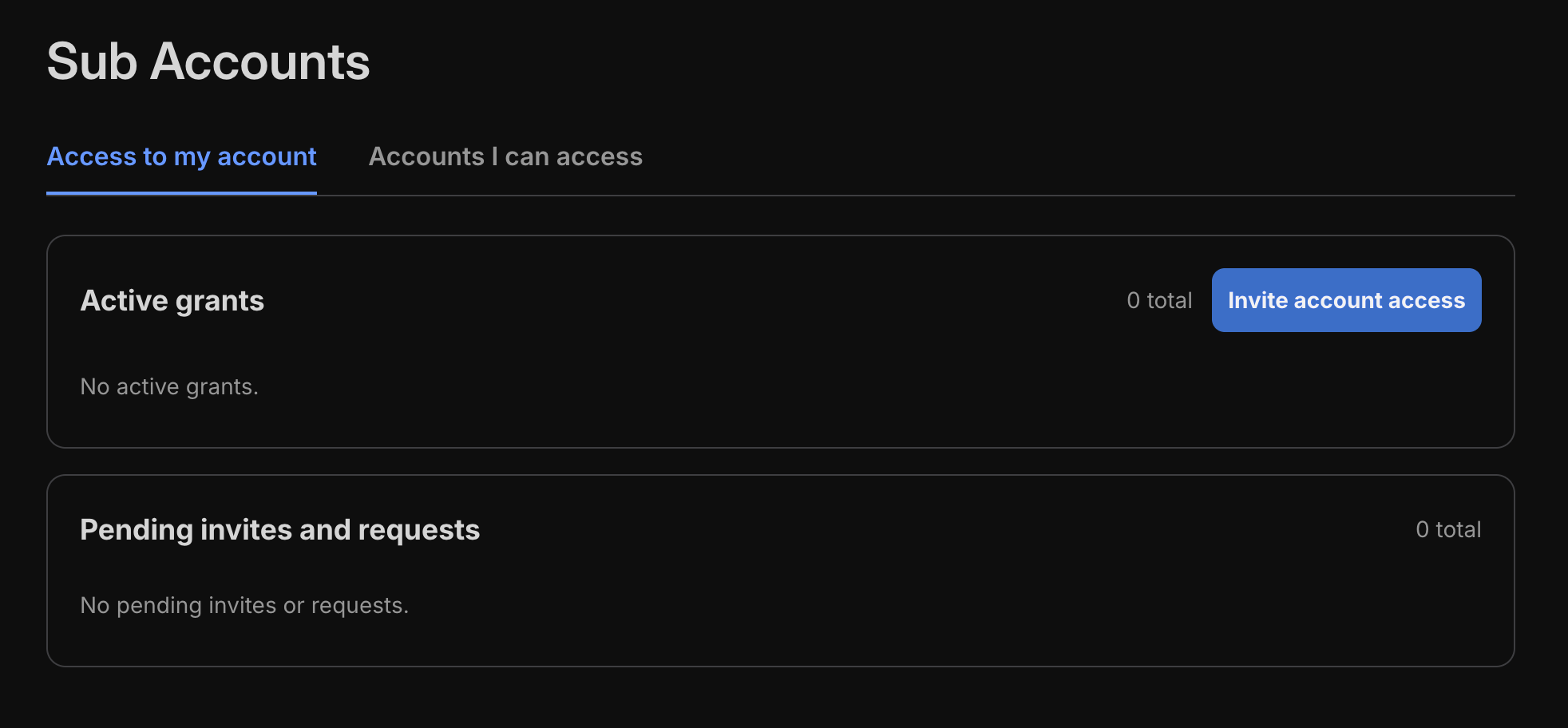
- Access to my account: People you've given access to.
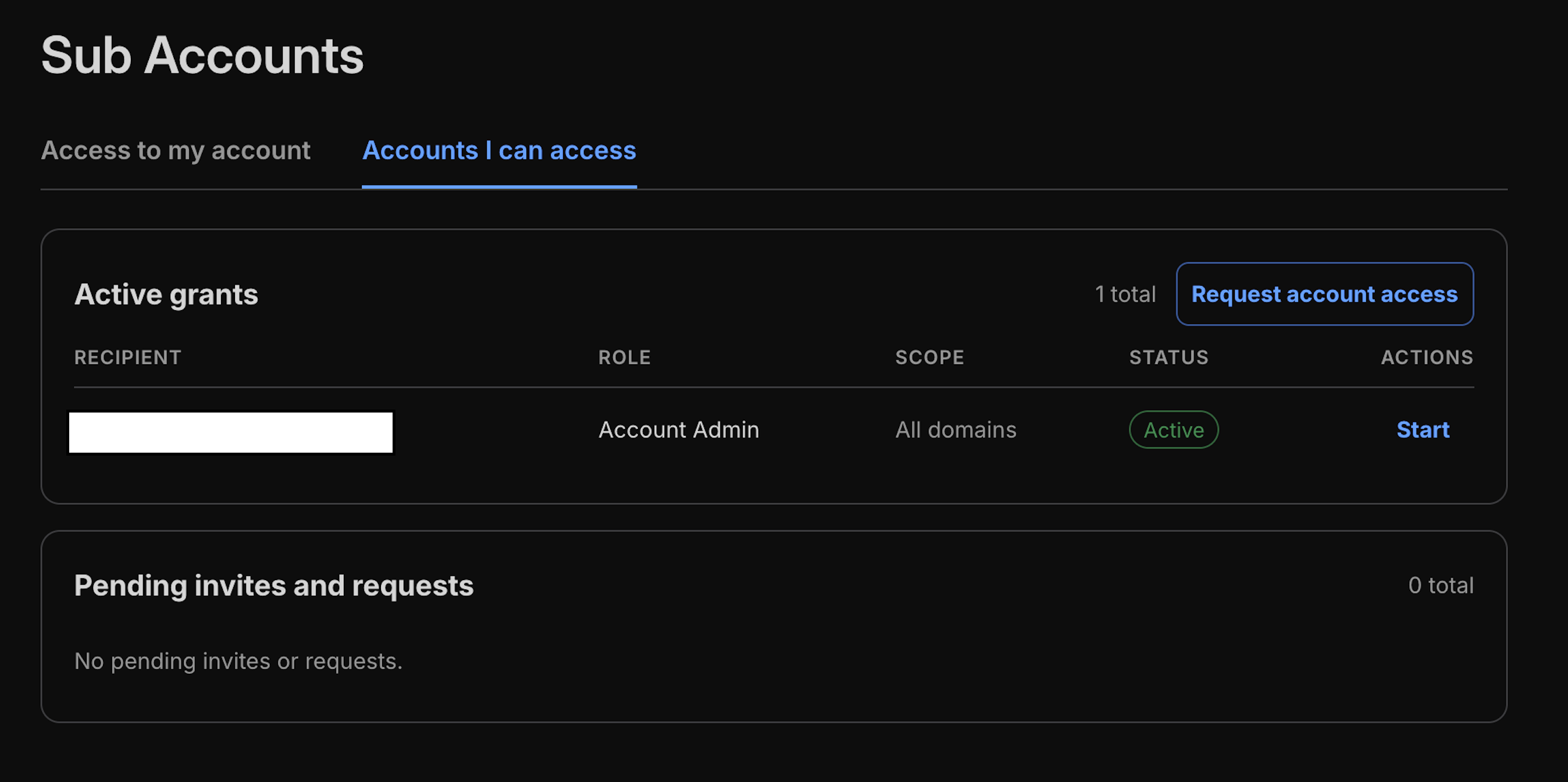
- Accounts I can access: Accounts others have shared with you.
Invite someone to your account
Use this when you want to give access to someone you know.
- On the Access to my account tab, select Invite account access.
- Enter the recipient's email.
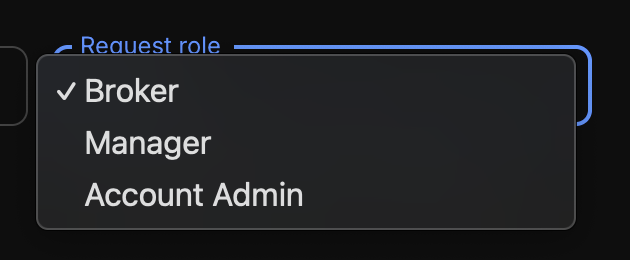
- Choose a role: Broker, Manager, or Account Admin. A short description appears under the role so you can confirm what it allows.
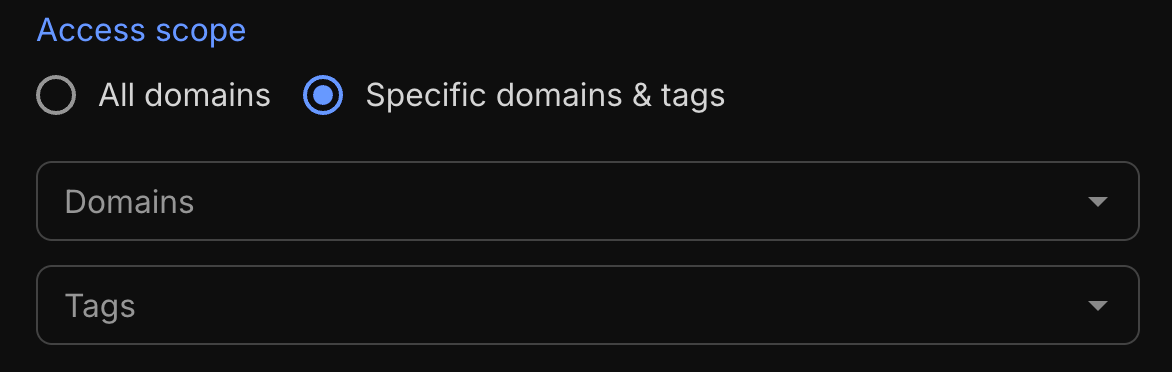
Choose the access scope:
- All domains: the access applies to every domain in your account.
- Specific domains & tags: search and select the individual domains, and/or choose tags, the access should cover.
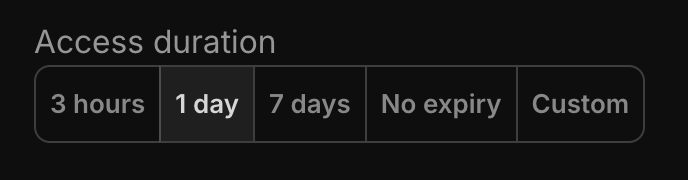
- Set the access duration:3 hours, 1 day, 7 days, No expiry, or Custom.
- Choose Custom to set your own length: enter an amount and pick a unit (Hours, Days, or Months). When the time is up, the access ends automatically. Choose No expiry only if you want access to continue until you remove it.
- Choose Custom to set your own length: enter an amount and pick a unit (Hours, Days, or Months). When the time is up, the access ends automatically. Choose No expiry only if you want access to continue until you remove it.
Select Send invite.
The recipient gets an email invitation. Their access is pending until they accept it.
You can't invite yourself. If you enter your own account email, the invite won't send.
Request access to someone else's account
If you need access to another person's account — for example, a broker asking a domain owner — you can request it, and they approve.
- On the Accounts I can access tab, select Request account access.

- Enter the account email of the person whose account you want to access.
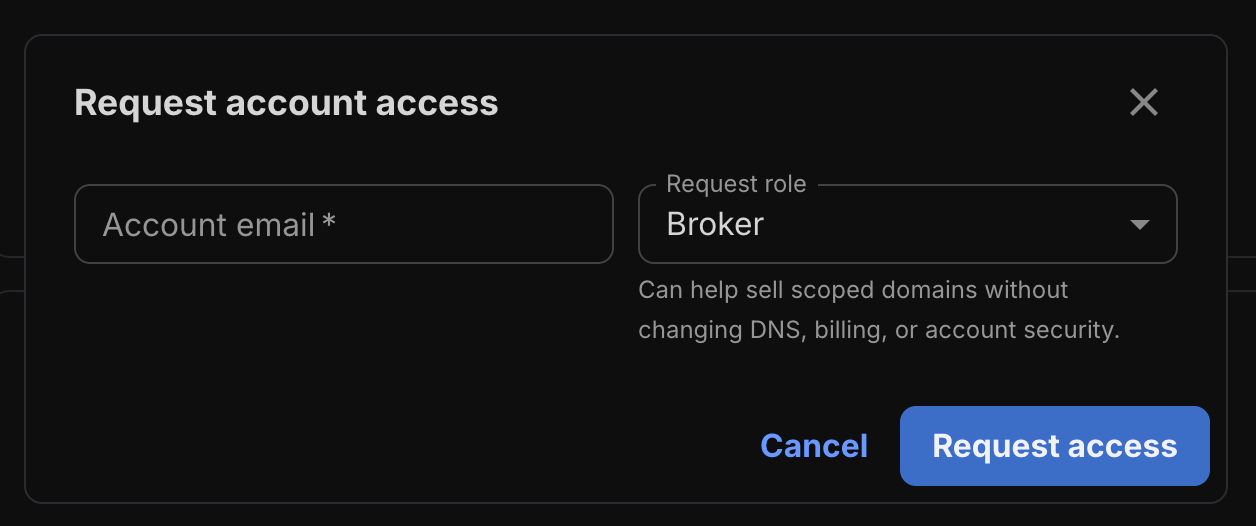
- Choose the role you're requesting.
- Select Request access.
A request asks for a role only, you don't set the scope or duration. The owner decides those when they approve your request, just as they would for an invite. They can also approve you with a different role than you asked for.
The account owner can approve or decline your request. It stays pending until they approve. Once approved, it becomes active and the account appears on your Accounts I can access tab.
You can't request access to your own account. If you enter your own account email, the request won't send.
What happens after you share access
Every grant moves through a simple set of states:
- Pending: Invited or requested, not yet accepted or approved. These appear in the Pending invites and requests section, showing the recipient, role, scope, and status. An invite you sent shows a Cancel action; a request someone sent to you shows Accept and Decline actions.
- Active: Accepted and in use. Active grants appear under Active grants, showing the recipient, role, scope, and status.
- Ended: The access is over. A grant ends when it's revoked (you removed it), declined (the recipient turned down the invite, or you declined a request), or expired (its time limit passed).
To change an active grant, select Edit on its row. In the Edit account access dialog you can change the role, the access scope (All domains or specific domains & tags), and the expiry. Leave the expiry set to Keep current expiry if you don't want to change it. Select Save changes.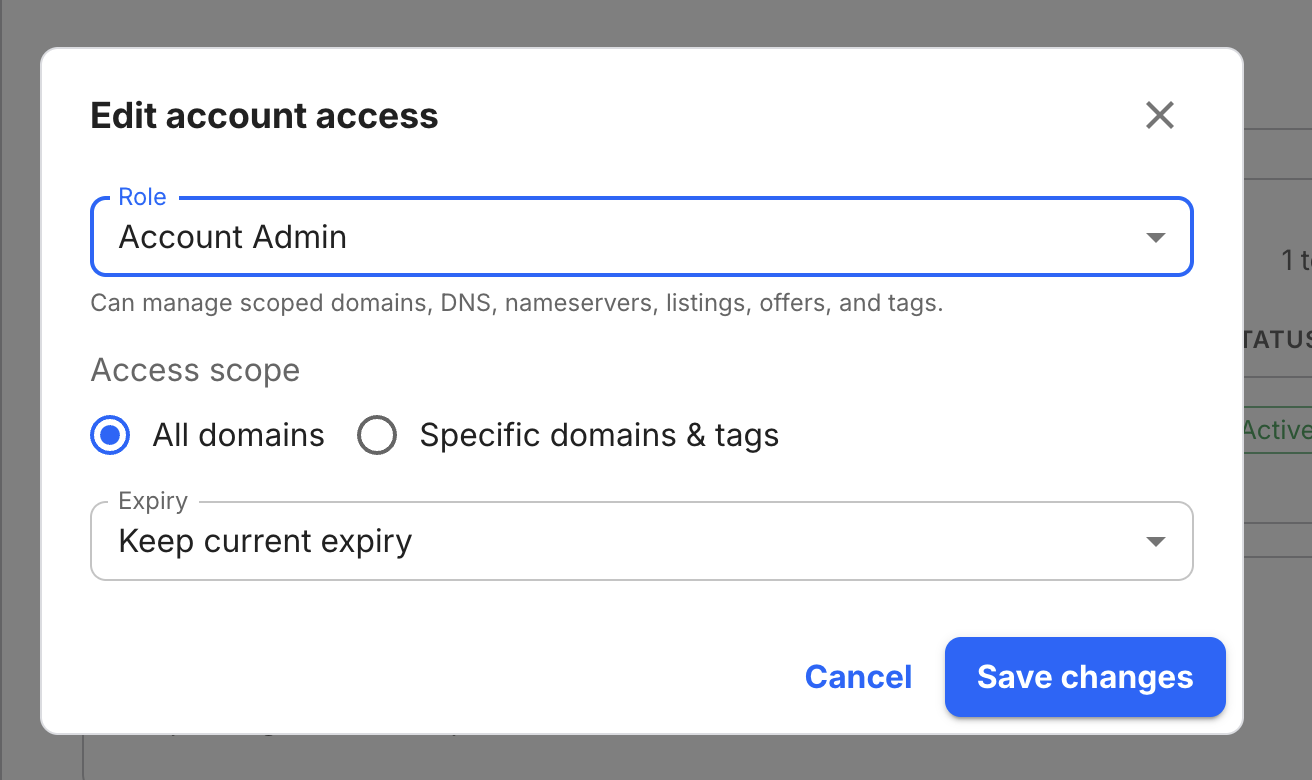
To end access, select Revoke. This takes effect immediately, and the person is emailed to let them know their access was removed.
Use access someone has shared with you
When someone invites you, you get an email — select Review invitation to accept it. Once accepted, their account appears on your Accounts I can access tab.
- Open the Accounts I can access tab.
- Find the account under Active grants and select Start.
- You're now acting as a delegate on that account. A banner across the top of every page shows a DELEGATED ACCESS badge and "You are logged in as [account email]", so you always know whose account you're working in.
- Select Exit sub account in that banner to return to your own account. While you're acting as a delegate, you can only do what your role and scope allow — anything outside that is hidden or unavailable.
Email notifications
Sub Accounts keeps everyone informed by email as access changes:
- When you're invited: You get an email ("…has invited you to access their account as a [role]") with a Review invitation button to accept.
- When your access starts: You get a confirmation ("You now have [role] access to …") with a Go to account button.
- When your invite is accepted: The owner is notified ("your invitation for [role] access to … was accepted") with a View access button.
- When access is revoked: The person whose access you removed is emailed to let them know.
- The recipient is also notified when access expires or is updated.
- If a grant hasn't been accepted yet, the notice goes to the invited email address, so people hear about an invitation before they join.
- Editing a grant only sends a notice when something actually changes — the role, the domain or tag scope, or the expiration. Re-saving the same settings sends nothing.
When support has access to your account
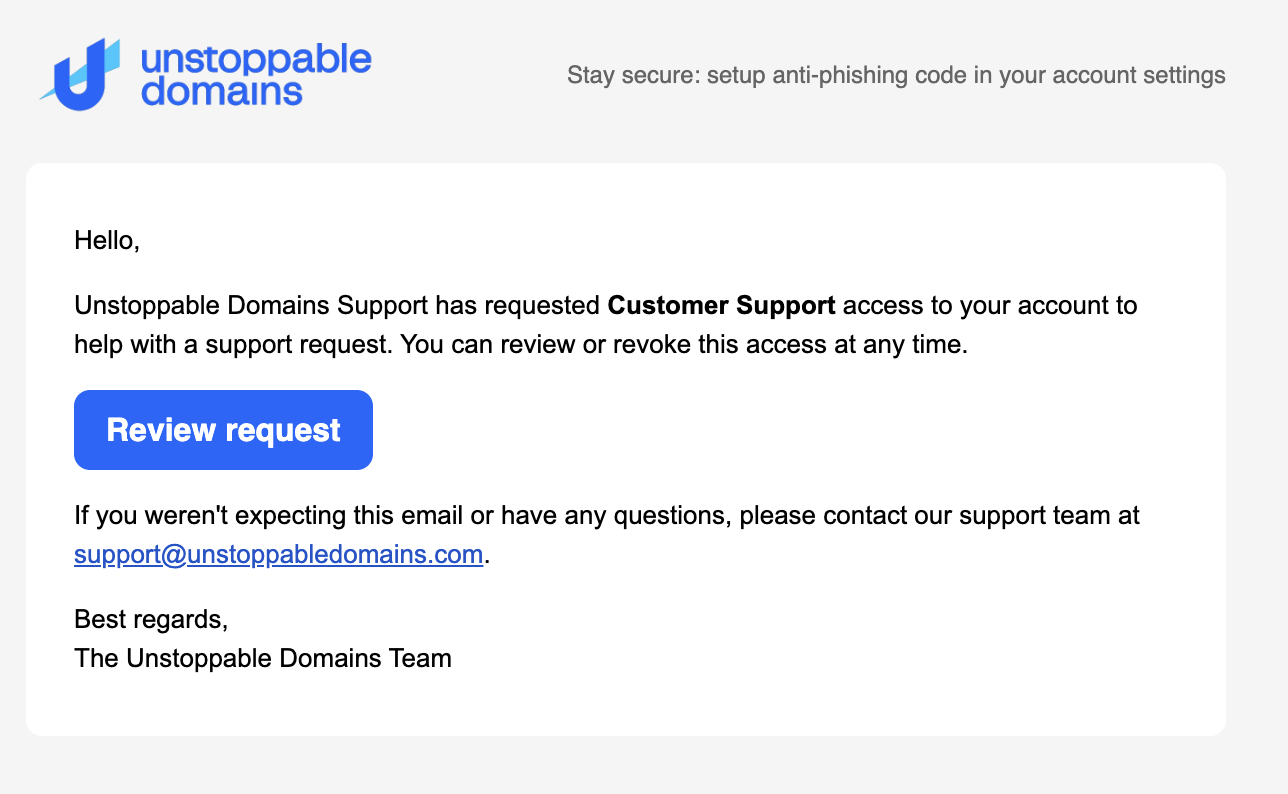
Sometimes, while helping with a support request, Unstoppable Domains support asks for temporary access to your account. This uses the Customer Support role, which is read-only — support can look into your account to investigate the issue but can't make any changes.
You're always in control of this access:
- You're notified by email. You'll get a message: "Unstoppable Domains Support has requested Customer Support access to your account to help with a support request." Select Review request to go to your Sub Accounts page.
- You accept or decline it. The request appears on your Access to my account tab under Pending invites and requests, with Accept and Decline buttons. Support can't see your account until you accept.
- You can revoke it anytime. Once accepted, the access shows under Active grants with a Revoke button. Revoking ends it immediately.
Troubleshooting
My invite never arrived
The recipient may be checking the wrong inbox, or the email may be filtered. Confirm the address on the pending grant under Access to my account, ask them to check spam, and re-send by revoking and inviting again. If it persists, contact support.
I can't send the invite
You may have entered your own account email. You can't invite yourself or request access to your own account. Use the recipient's email instead.
The person I gave access to can't change DNS (or a listing, or billing)
Their role may not include it. Brokers can't change DNS; billing and account security are off-limits to everyone you invite. Edit the grant to a role with the right permissions, or handle that change yourself.
A delegate says they can't see some of my domains
The grant is probably scoped to specific domains or tags. Edit the grant and switch it to All domains, or add the missing domains to its scope.
Access ended unexpectedly
The grant likely reached its expiration. Grants with a duration end automatically when the time is up. Invite the person again and choose a longer duration or No expiry if ongoing access is intended.
Need help?
If a problem persists, contact support at support@unstoppabledomains.com.