How to Export Your Private Keys from Up.io Lite Wallet and Import Them into MetaMask
Terminology note: Up.io Lite Wallet does not use a BIP-39 "seed phrase." It exports a separate private key per chain (one for EVM chains, one for Bitcoin). Please refer to these as "private keys," not a "seed phrase," when talking to customers.
This applies to customers using the Up.io self-custody Lite Wallet, which is being discontinued on June 1, 2026. Customers need to export their keys and move funds to another wallet (MetaMask for EVM assets, Electrum for Bitcoin) before that date.
⚠️ Solana key export is not supported. Solana assets/domains must be transferred out another way before the deadline.
Step 1: Access your wallet
If the customer is locked out, they can use the emergency backup / recovery email sent from Up.io. It contains a Recover Wallet button.
Please note, you will need to manually change the URL of the link from 'https://up.io/wallet' to 'https://ud.me/app'
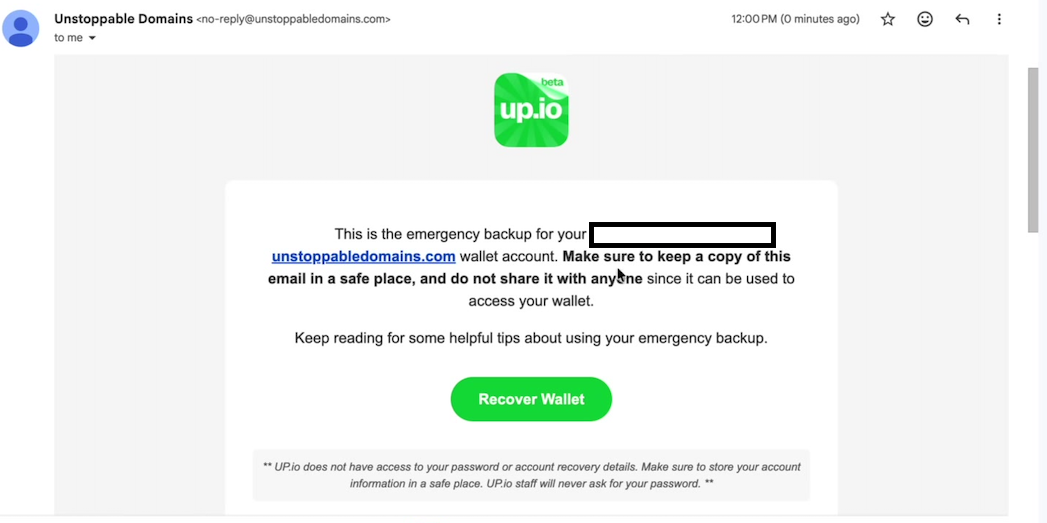
⚠️ Security note: This recovery link contains a one-time recovery token in the URL. Customers should never forward or share this email.
If they already know their wallet password, they can skip straight to Step 3.
Step 2: Reset the wallet password (if using the recovery link)
Following the recovery link prompts the customer to set a new wallet password.
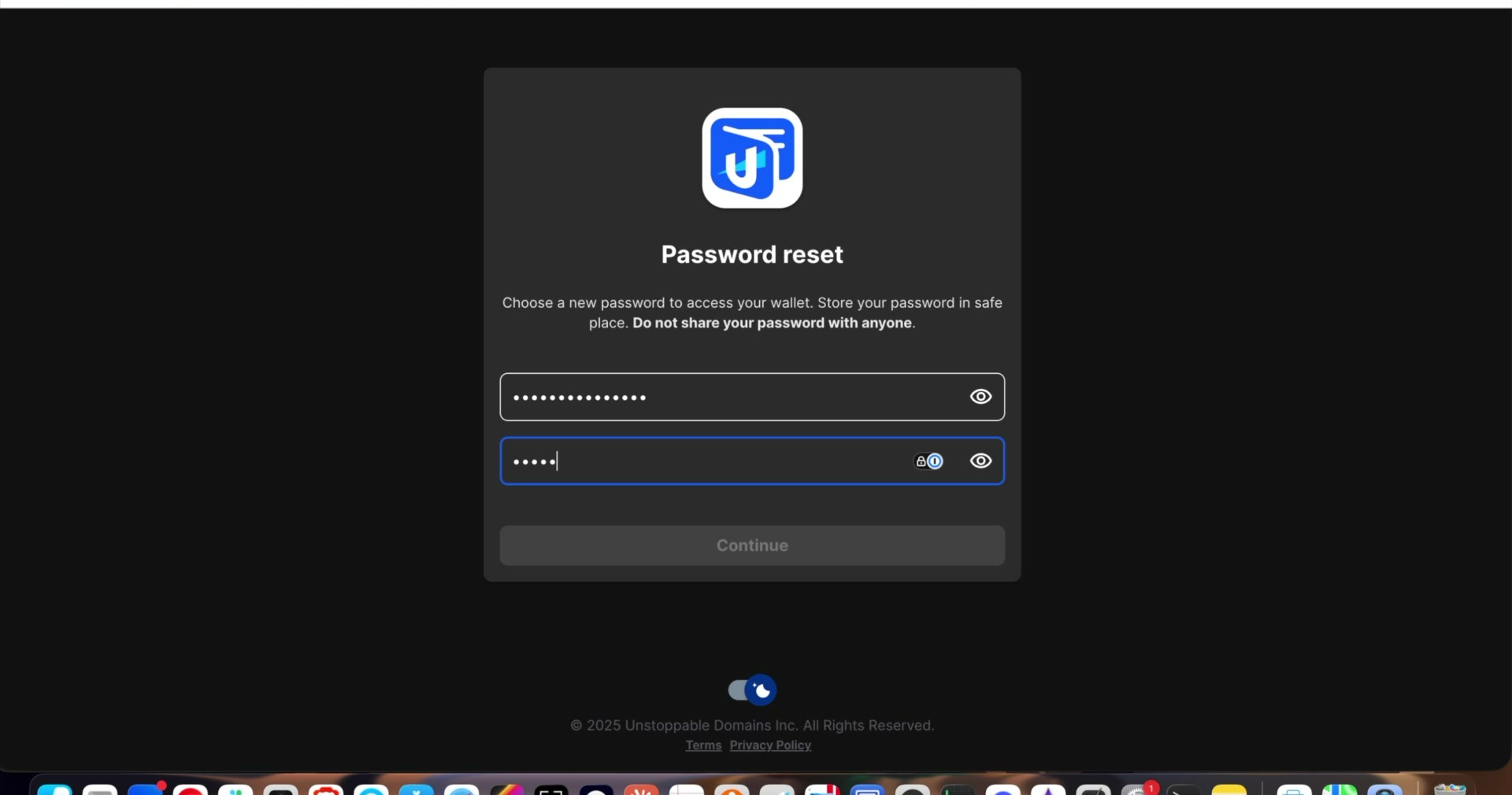
They'll also be emailed a one-time verification code to confirm the reset before the wallet loads.
Step 3: Open the "Export Private Keys" prompt
Once logged in, the wallet dashboard shows an Action Required banner (since self-custody wallets are being discontinued). Click Export Private Keys.
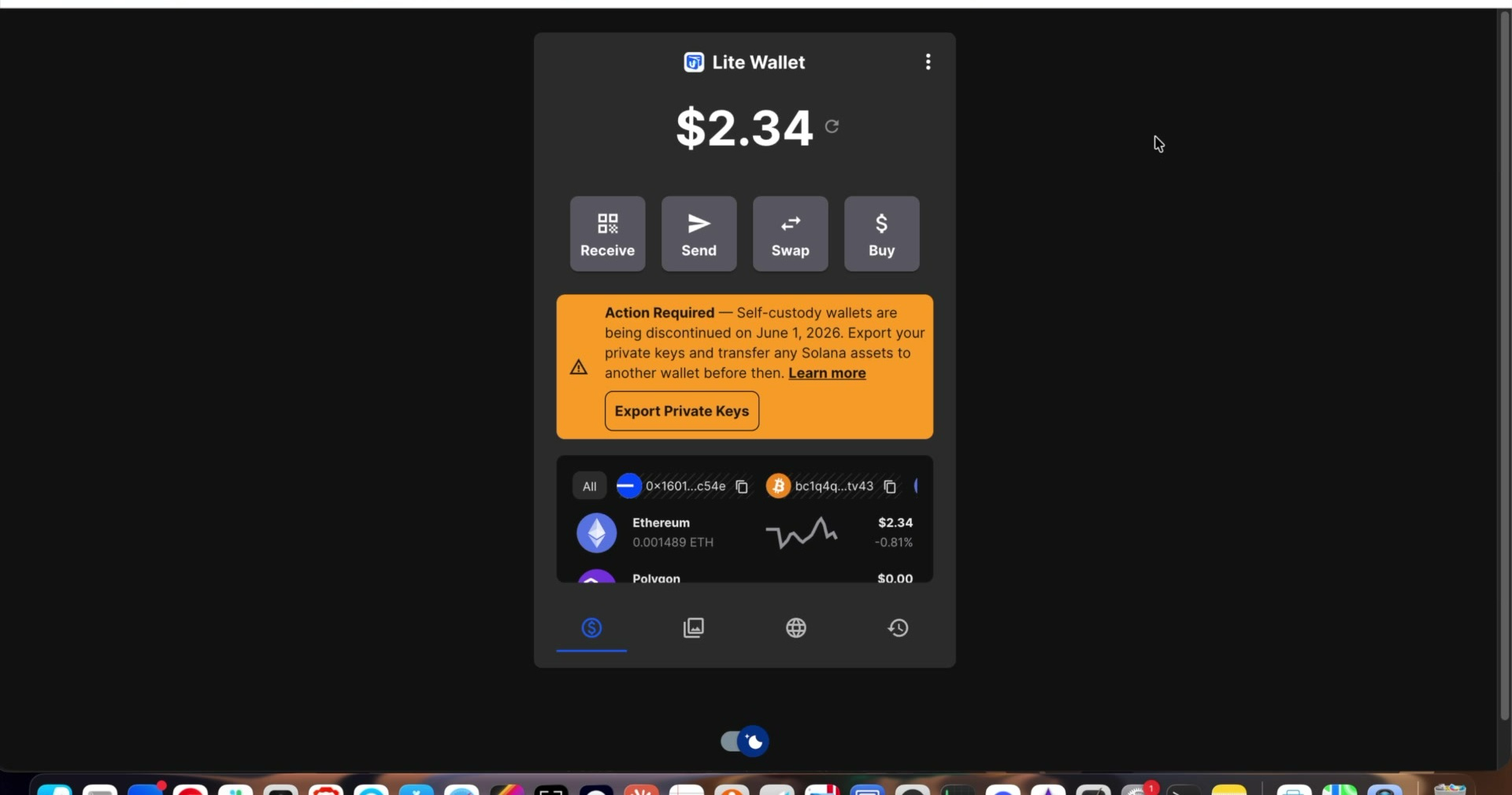
Step 4: Enter the wallet password
The customer re-enters their wallet password to authorize the export
Step 5: Enter the emailed one-time code
A second one-time code is emailed to confirm the export request itself (separate from the login code in Step 2).
[Insert screenshot: One-time code entry]
Step 6: View and save the private keys
The wallet displays two masked private keys with Copy buttons — one for EVM chains (Ethereum, Polygon, etc.) and one for Bitcoin:
⚠️ Never share your private keys. Anyone with these keys can access your assets.
Your private keys are shown below. Save them in a secure location.
EVM
0x16010B...fEc54e
•••••••••••••••••••••••••••
BITCOIN
bc1q4q07...krtv43
•••••••••••••••••••••••••••
Import instructions
- MetaMask (EVM): Account selector > Add wallet > Import an account > Paste private key
- Electrum (Bitcoin): Create new wallet > Import Bitcoin private keys > Paste WIF key
The Bitcoin private key is in WIF (Wallet Import Format), which is supported by most Bitcoin wallets.
- EVM key → import into MetaMask
- Bitcoin key → import into Electrum or another Bitcoin wallet that supports WIF
Customers must tick "I have saved my private keys" before closing this dialog. Remind them: never share these keys with anyone, including support staff.
Step 7: Import the EVM key into MetaMask
In MetaMask: click the account selector → Add wallet → select Private key as the type → paste the copied EVM private key.
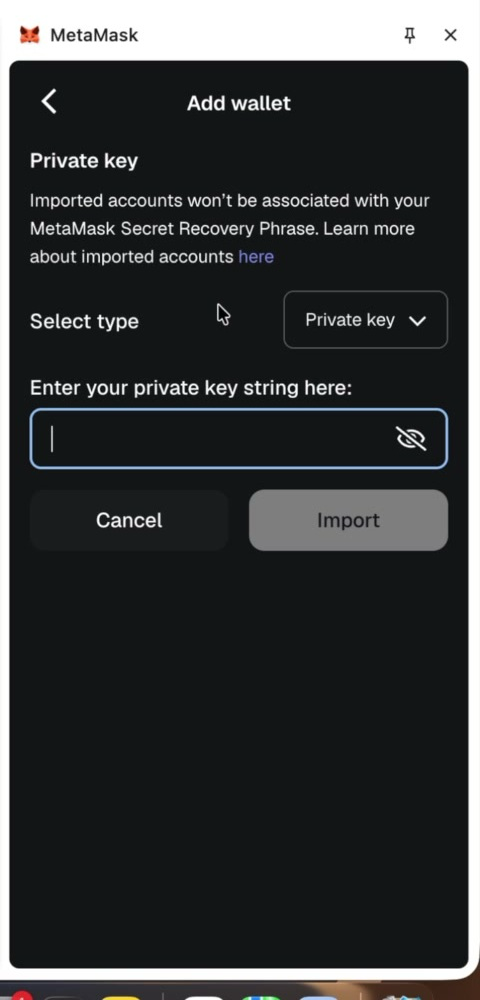
Click Import.
Step 8: Confirm the import
The imported account now appears under Imported accounts in MetaMask, holding the balance that was in the Lite Wallet.
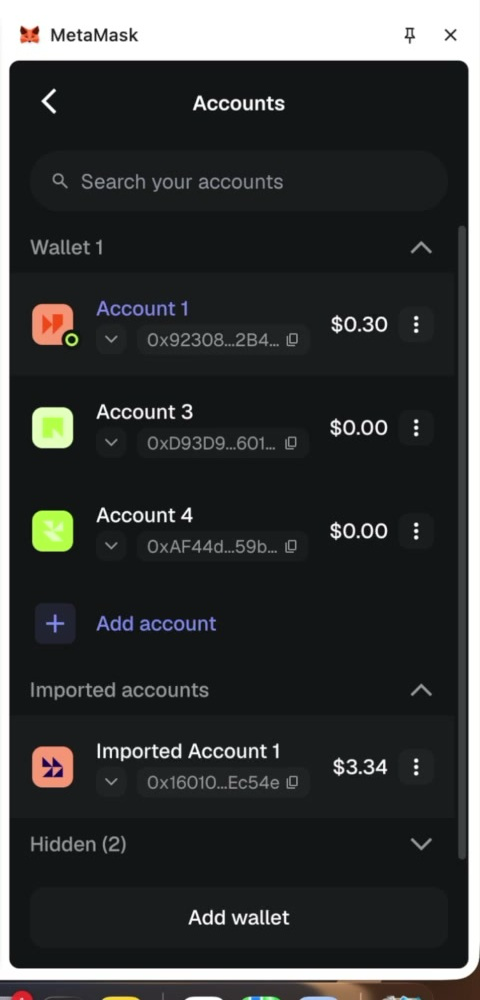
MetaMask will show a note that imported accounts aren't tied to the MetaMask Secret Recovery Phrase — that's expected, since this was a direct private key import, not a seed phrase restore.